After completing this lesson, you'll be able to:
In this lesson, you will:
After completing this lesson, you'll be able to:
In this lesson, you will:
The content used in this lesson builds on the previous lessons in this course. To do this exercise, please complete all the previous lessons.
If you're taking a live Safe Software-hosted training course or using an on-demand lab for this course, we've already imported the content for this lesson into your FME Flow.
If you're completing this lesson with your own FME Flow, you must import the starting project with the content into your FME Flow.
See FME Flow Authoring: Instructions to Import the Starting Project for directions to import the project to your own FME Flow.
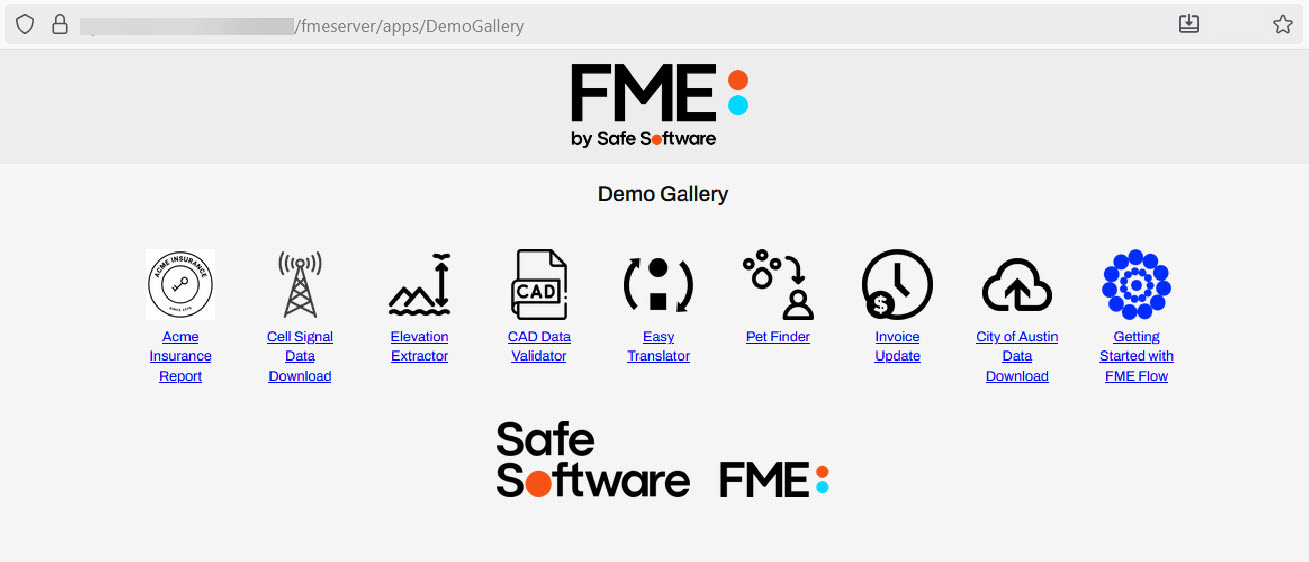
Gallery apps act as landing pages to link to other apps and websites. You add links to workspace apps, automation apps, and external URLs that display with customizable text and icons on the Gallery App page. Like all other Flow apps, you access gallery apps from a single URL. By linking to other apps and websites from the gallery app, you can group and share content by sharing a single URL: the gallery app itself.
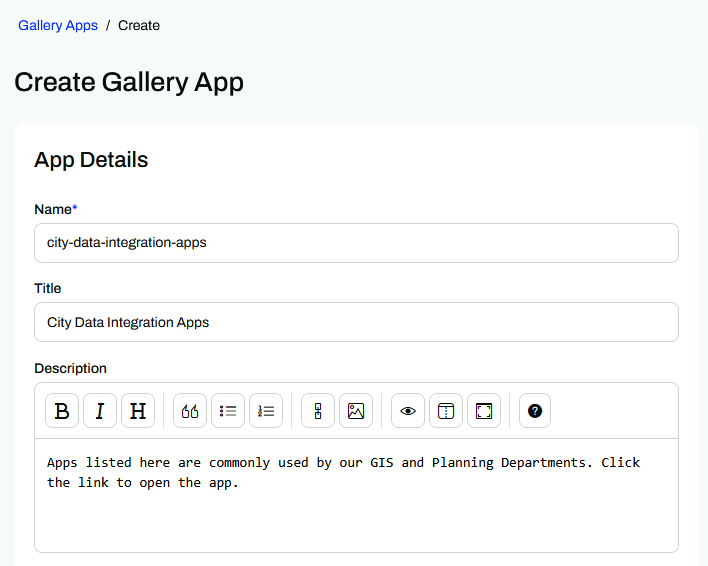
Like other Flow apps, the Create gallery app opens a form you fill out to create your gallery app. The customization options are the same as in other Flow apps, allowing you to tailor the app to your organization's branding by adding color, icons, and images.

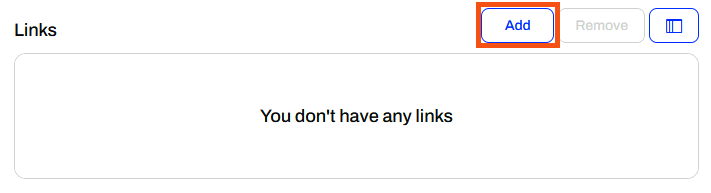
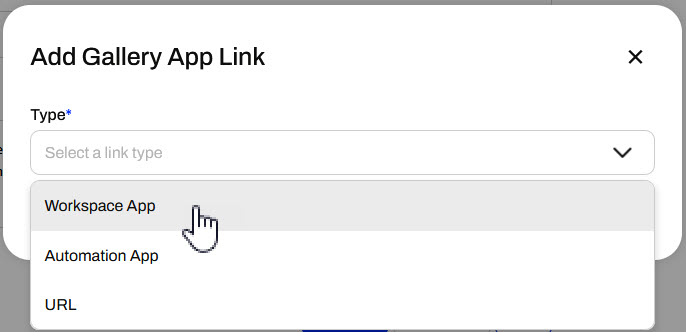
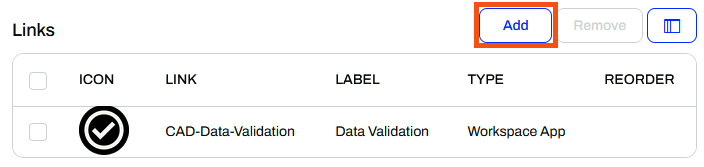
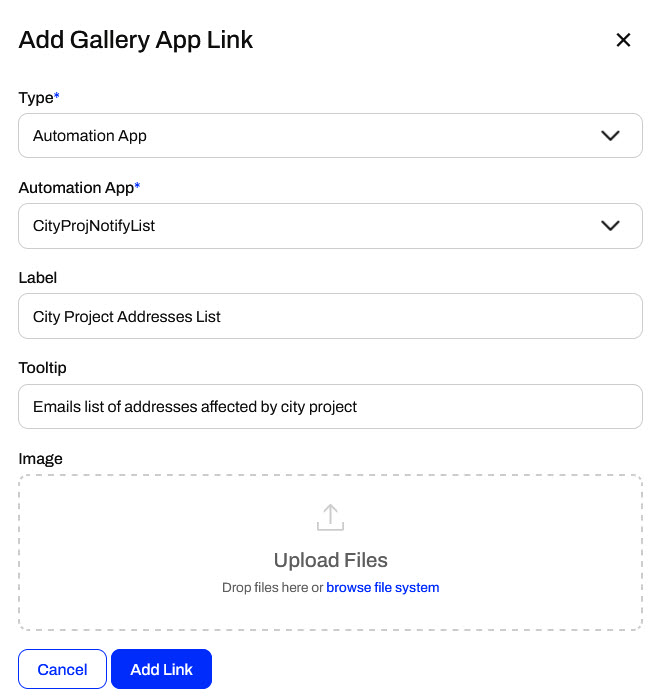
Links are unique to gallery apps and reference the individual links in your gallery app displays. For each link, select "Add" and then choose your link type.

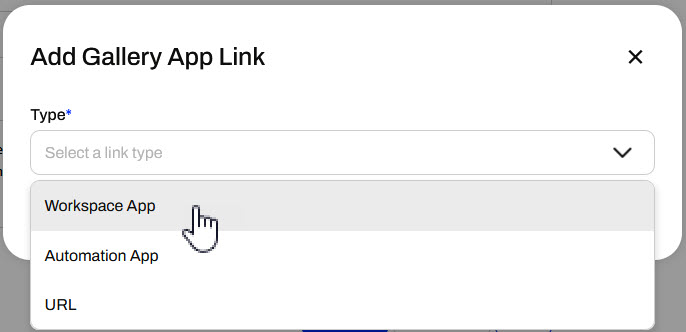
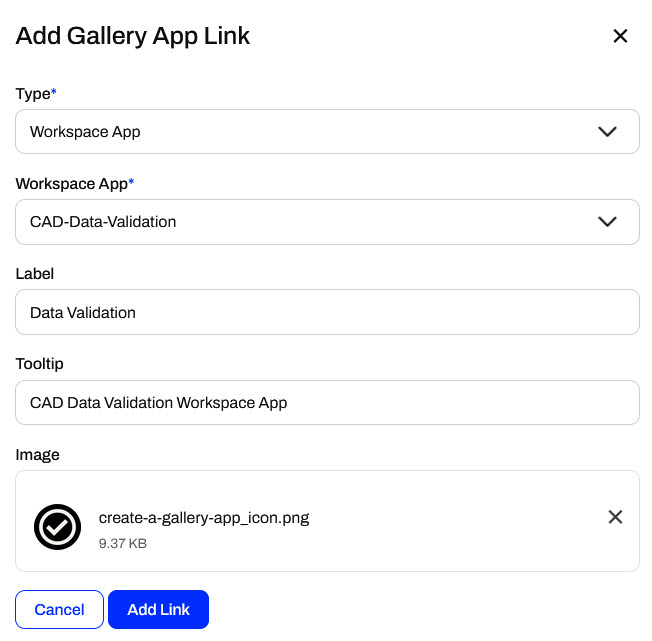
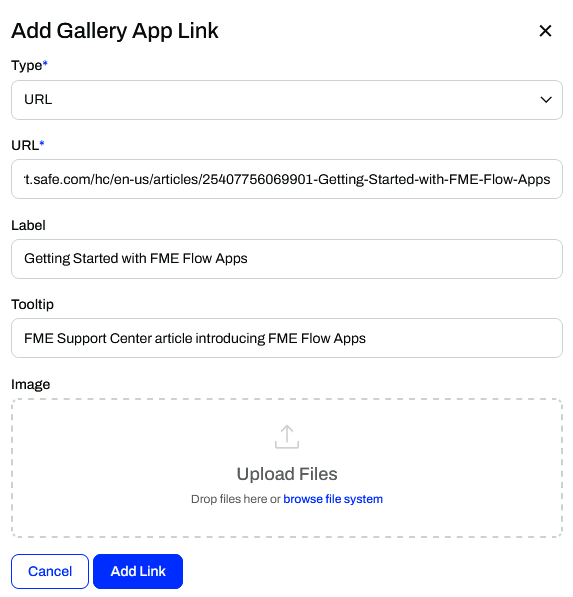
The window will automatically populate parameters for you to fill out. Select your app or paste your URL, then customize how the link appears in the gallery app.
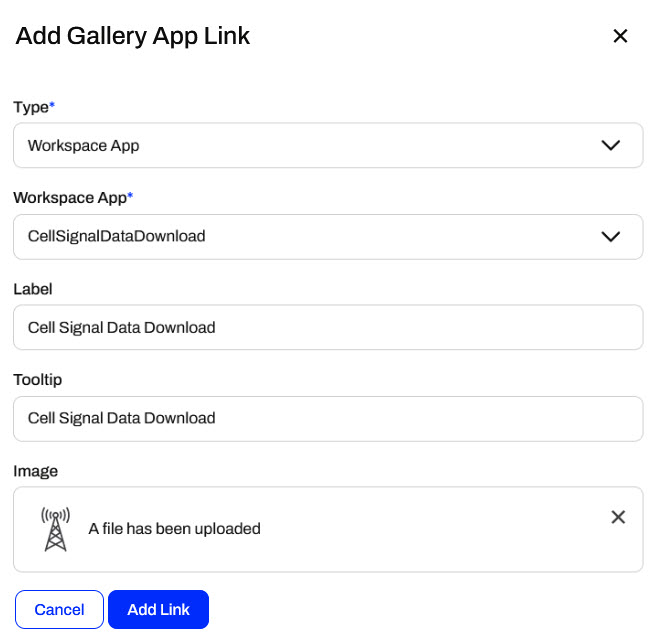
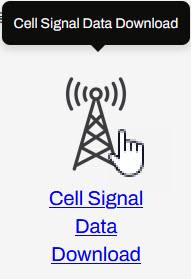
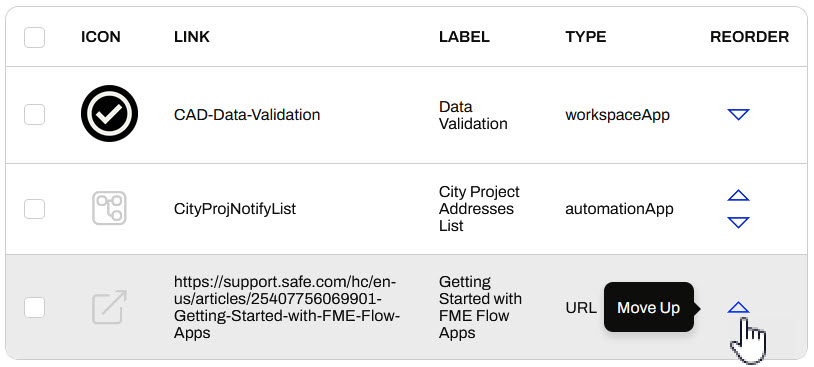
The Label appears beneath the image in the gallery app, while the Tooltip text appears when you hover over the image. The image appears as an icon that you may select to open the link. If you do not add an image, FME Flow will display default images that reflect the link type.
Although there isn't a link type for it, it's actually possible to link to another gallery app from a gallery app. To do this, you just select the URL link type and set it to the gallery app's custom URL.
Gallery apps may be publicly accessible, provided that your FME Flow is publicly accessible. Alternatively, you can set App Security to Private to restrict access to specific FME Flow roles and users.
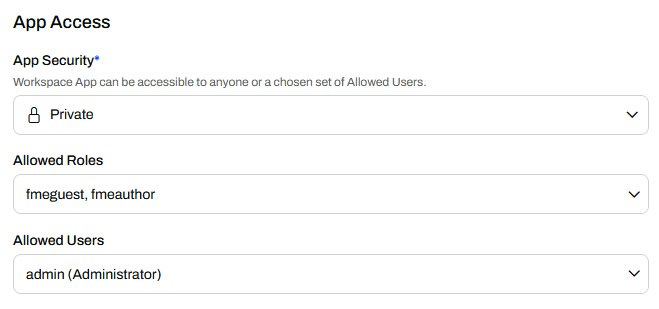
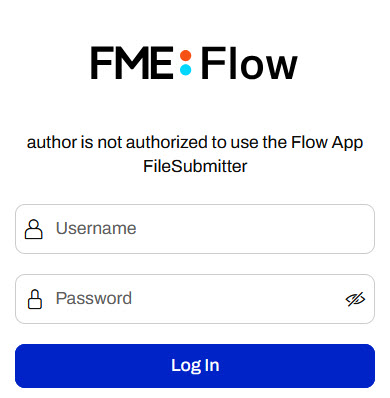
Gallery app security settings only apply to the gallery app page itself. You control permission to access the linked workspace and automation apps separately and individually from those app creation and editing pages. If you don't have permission to a workspace or automation app, you will still see the link on the gallery app page, but you will get an error when you open it and try to log in to access the app.

Frank, an FME Flow administrator, wants to stop sending his colleagues a different link for every Flow app the team builds. He needs one page that gathers the apps together, alongside a link to background reading for people who have never used a Flow app. A gallery app gives him a single URL to share.
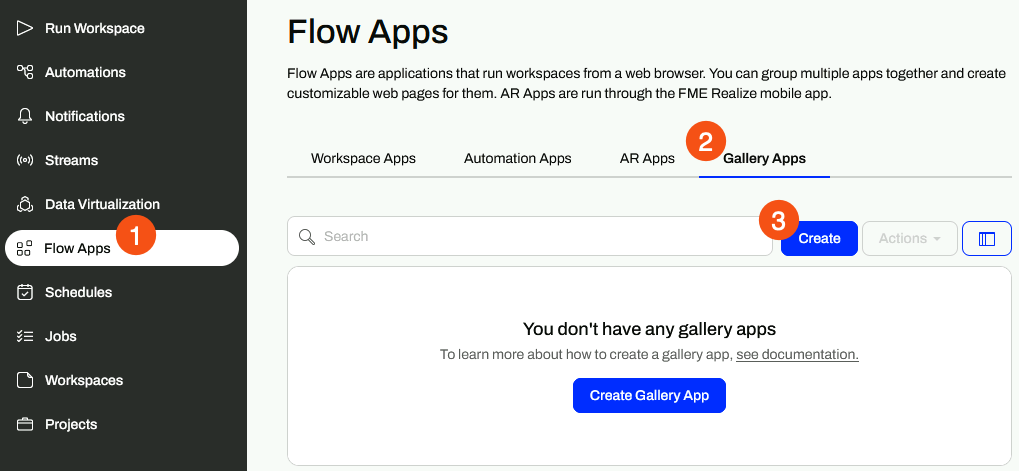
In this exercise, you will:
https://support.safe.com/hc/en-us/articles/25407756069901-Getting-Started-with-FME-Flow-Apps
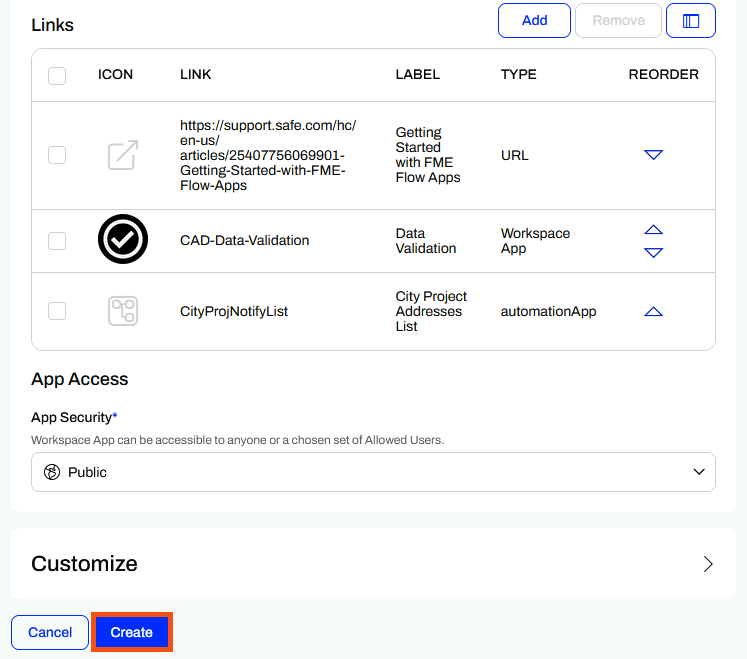
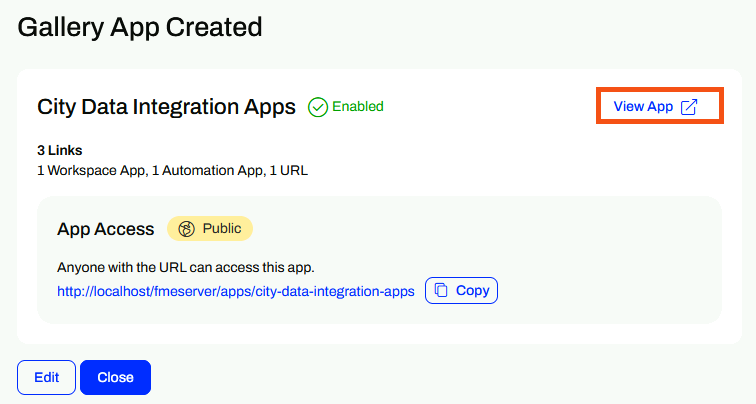
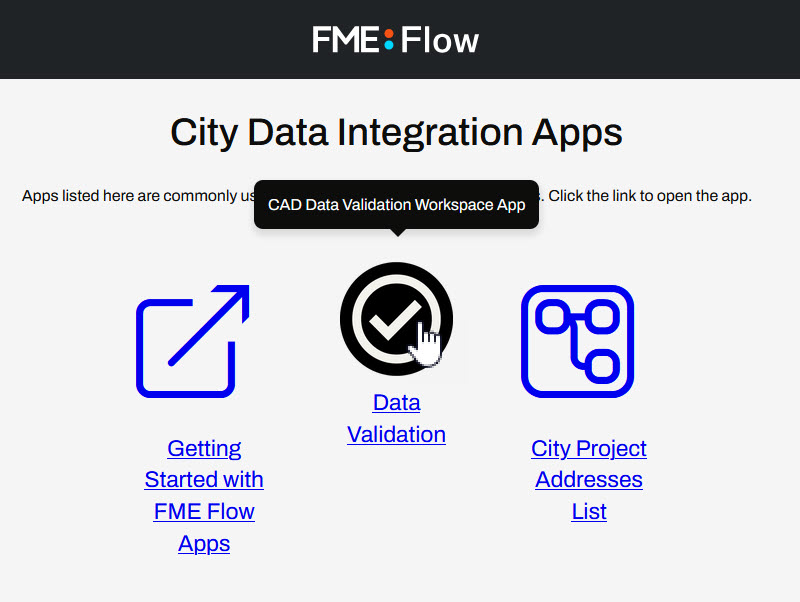
You have built a gallery app that gathers two Flow apps and a reference article behind a single URL, allowing you to share all three links from the single gallery app URL.
The content used in this lesson builds on the previous lessons in this course. To do this exercise, please complete all the previous lessons.
If you're taking a live Safe Software-hosted training course or using an on-demand lab for this course, we've already imported the content for this lesson into your FME Flow.
If you're completing this lesson with your own FME Flow, you must import the starting project with the content into your FME Flow.
See FME Flow Authoring: Instructions to Import the Starting Project for directions to import the project to your own FME Flow.
Gallery apps act as landing pages to link to other apps and websites. You add links to workspace apps, automation apps, and external URLs that display with customizable text and icons on the Gallery App page. Like all other Flow apps, you access gallery apps from a single URL. By linking to other apps and websites from the gallery app, you can group and share content by sharing a single URL: the gallery app itself.
Like other Flow apps, the Create gallery app opens a form you fill out to create your gallery app. The customization options are the same as in other Flow apps, allowing you to tailor the app to your organization's branding by adding color, icons, and images.
Links are unique to gallery apps and reference the individual links in your gallery app displays. For each link, select "Add" and then choose your link type.
The window will automatically populate parameters for you to fill out. Select your app or paste your URL, then customize how the link appears in the gallery app.
The Label appears beneath the image in the gallery app, while the Tooltip text appears when you hover over the image. The image appears as an icon that you may select to open the link. If you do not add an image, FME Flow will display default images that reflect the link type.
Although there isn't a link type for it, it's actually possible to link to another gallery app from a gallery app. To do this, you just select the URL link type and set it to the gallery app's custom URL.
Gallery apps may be publicly accessible, provided that your FME Flow is publicly accessible. Alternatively, you can set App Security to Private to restrict access to specific FME Flow roles and users.
Gallery app security settings only apply to the gallery app page itself. You control permission to access the linked workspace and automation apps separately and individually from those app creation and editing pages. If you don't have permission to a workspace or automation app, you will still see the link on the gallery app page, but you will get an error when you open it and try to log in to access the app.
Frank, an FME Flow administrator, wants to stop sending his colleagues a different link for every Flow app the team builds. He needs one page that gathers the apps together, alongside a link to background reading for people who have never used a Flow app. A gallery app gives him a single URL to share.
In this exercise, you will:
https://support.safe.com/hc/en-us/articles/25407756069901-Getting-Started-with-FME-Flow-Apps
You have built a gallery app that gathers two Flow apps and a reference article behind a single URL, allowing you to share all three links from the single gallery app URL.
